

Introduction
JavaScript Framework Dashboard Tutorial development has become crucial in modern web programming, and this tutorial explains how you can build a dynamic dashboard using a JS framework. In this article, we cover essential topics such as components, registries, services, and asynchronous data loading. Moreover, we provide hands‐on code examples and practical explanations that showcase how to use the JS framework to build modular dashboards. You will learn how to integrate subcomponents like dashboard items and even how to lazy load a pie chart library. Additionally, we discuss cache management and offer extra resources such as the Odoo Official Site to deepen your knowledge.
Setting Up Your JavaScript Framework Environment
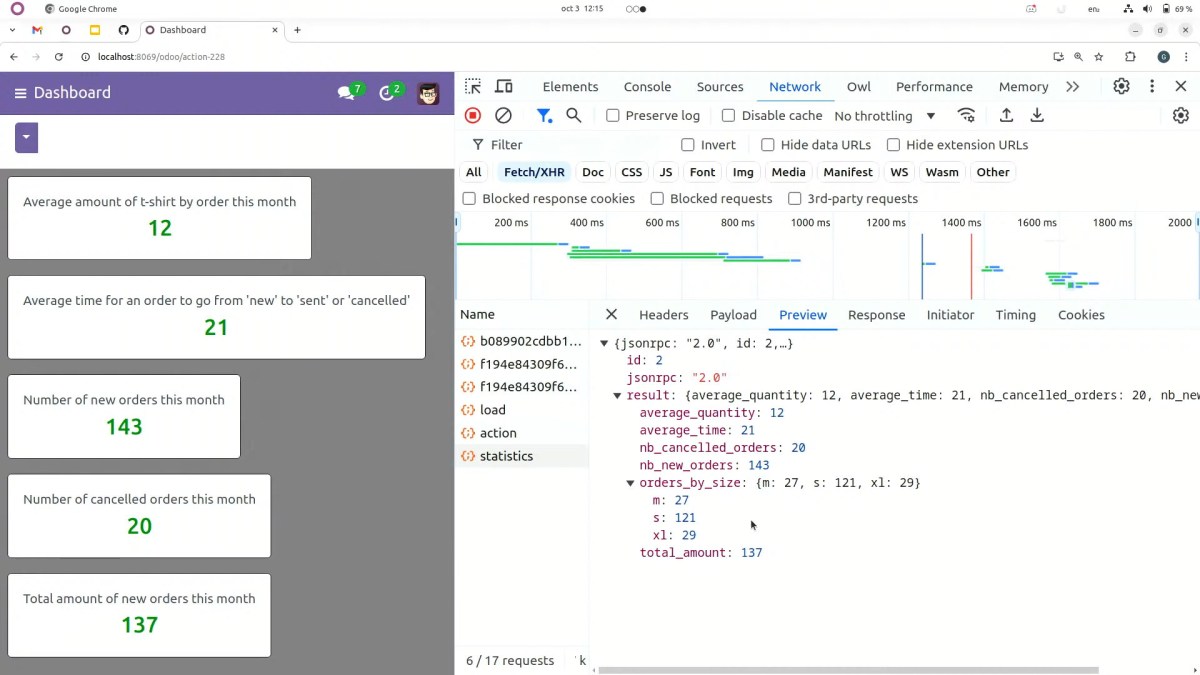
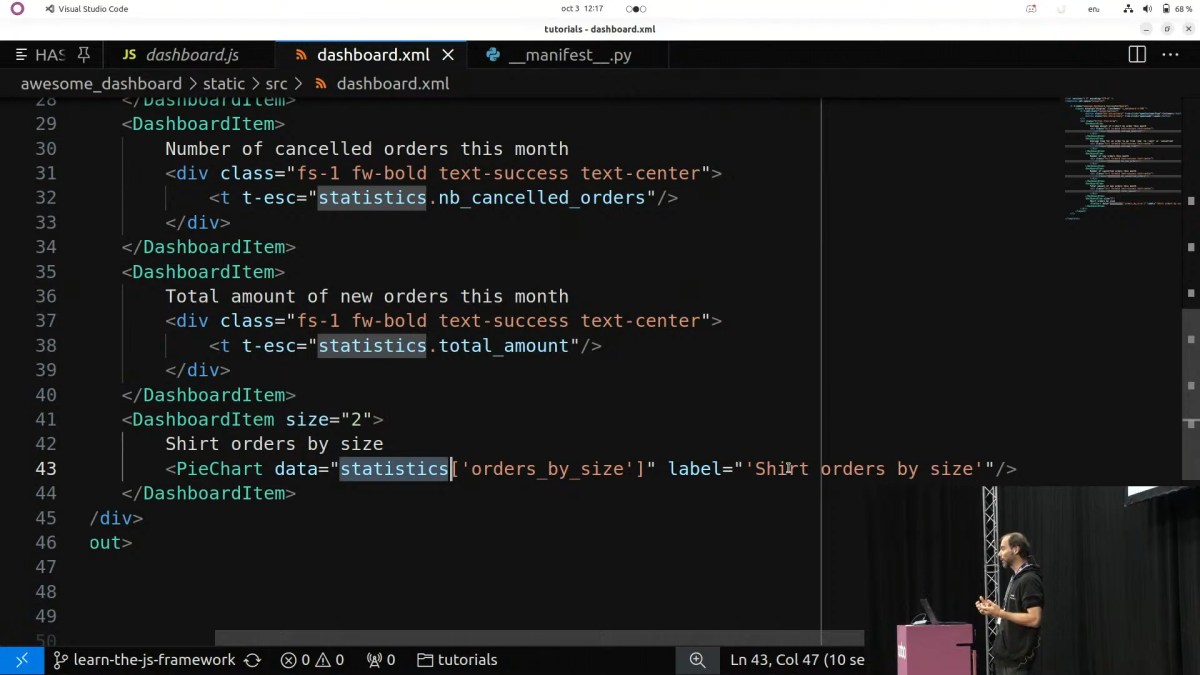
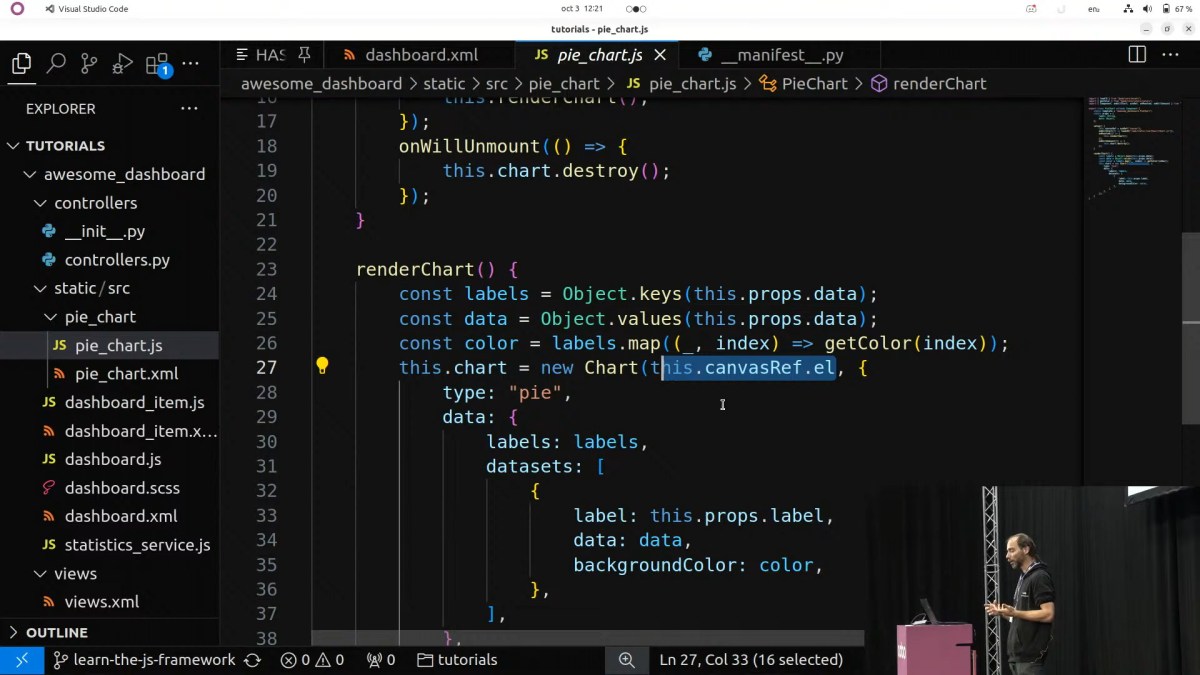
What You Need First
Before you jump into coding to JavaScript Framework Dashboard Tutorial, you must install your development environment. First, download a code editor such as Visual Studio Code. Then, install Node.js and npm so that you can manage packages easily. Next, if you work with Odoo or similar modern platforms, configure your assets folder to correctly load JavaScript and SCSS files. Furthermore, you might want to clone a repository with a sample dashboard project to try out the code provided later in this post.
Configuring Your Project
After setting up your code editor, initialize your project directory. Open your terminal and type:
mkdir js-dashboard-tutorial
cd js-dashboard-tutorial
npm init -y
This command creates a new folder and initializes a Node.js project. Next, install any dependencies you might need. For example, if you plan to use a chart library, you may install Chart.js:
npm install chart.js
Moreover, if you work with a framework like OWL (Odoo Web Library), include that dependency as well. In our example, we assume you have access to similar tools provided by your work platform.
Core Concepts of the JavaScript Framework
Components, Registries, and Services Overview
In a modern JavaScript Framework Dashboard Tutorial, components represent self-contained pieces of UI code. You create reusable components to build larger interfaces such as dashboards. Moreover, most frameworks use registries to allow different add-ons to register themselves. Consequently, the web client uses services to extend functionalities further.
For example, the OWL component system in Odoo demonstrates a component’s life cycle. You write JavaScript code for logic and define an XML template for the view. Then, when you register that component into a registry, your main web client picks it up automatically.
Understanding the OWL Component Life Cycle
OWL (Odoo Web Library) provides a robust lifecycle for its components. First, when you create a component, you define its reactive state, view template, and event handlers. Then, the framework renders the interface on the next animation frame, which helps optimize performance. Furthermore, you can register lifecycle hooks such as onMounted and onWillStart. These hooks run your custom code before or after rendering and allow you to manage asynchronous operations.
For instance, consider the following example of a simple OWL component:
/** Simple OWL Component Example **/
class CounterComponent extends owl.Component {
    constructor() {
        super(...arguments);
        this.state = owl.useState({ count: 0 });
    }
    increment() {
        this.state.count += 1;
    }
}
CounterComponent.template = owl.tags.xml/*xml*/`
    <div>
        <span t-esc="state.count"/>
        <button t-on-click="increment">Increment</button>
    </div>`;
owl.Component.mount(CounterComponent, document.getElementById('app'));
In this snippet, every sentence in the component actively defines behavior. First, the state is established. Next, a function increments the count. Finally, the component is mounted to the DOM. Notice how the active voice and short sentences improve clarity.
Building a Basic Dashboard
Creating the Dashboard Component
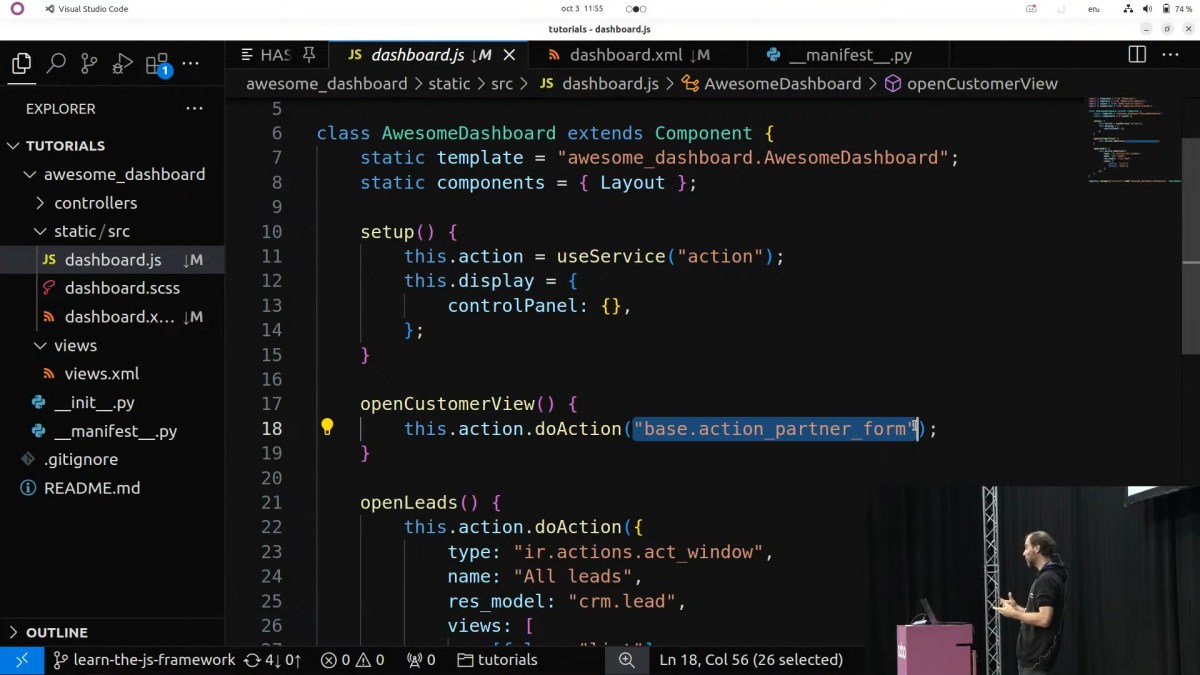
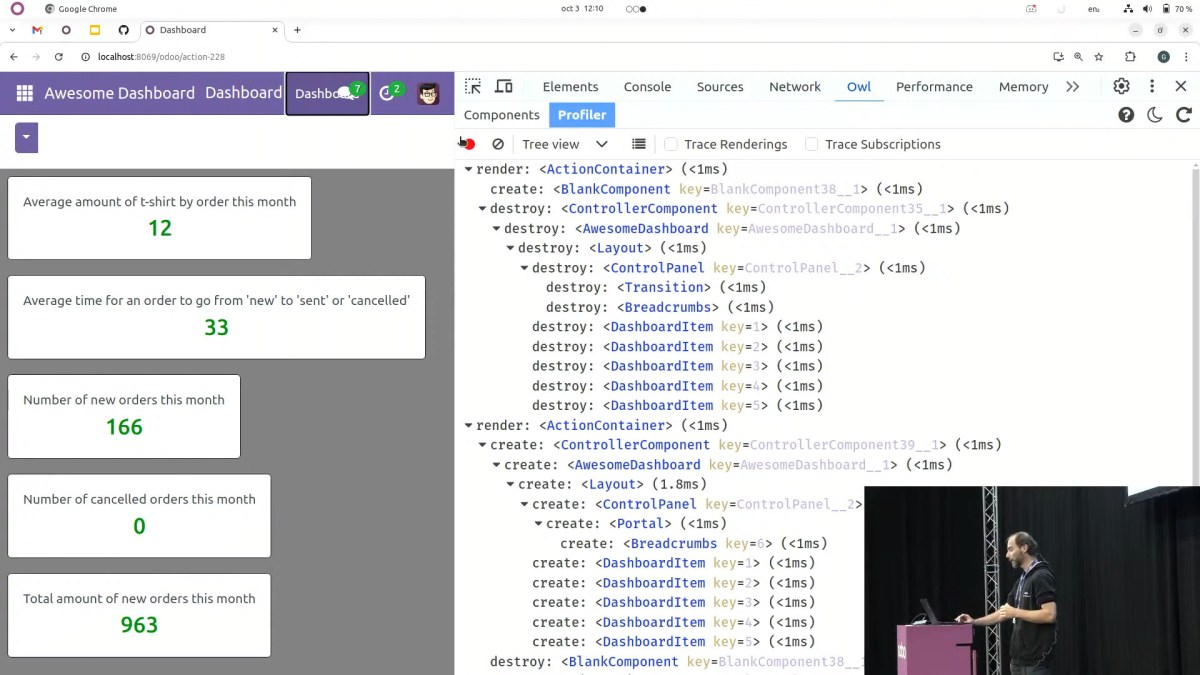
Let’s now build a JavaScript Framework Dashboard Tutorial by combining several components. In this step, you create a dashboard main component that uses subcomponents such as dashboard items. First, you import and register any subcomponents in your main dashboard component.
Consider this simplified code sample:
/** Dashboard Component **/
class Dashboard extends owl.Component {
    static components = { DashboardItem, PieChart };

    setup() {
        this.statistics = owl.hooks.onWillStart(async () => {
            // Use RPC or service to load dashboard data asynchronously
            const stats = await loadDashboardStatistics();
            return stats;
        });
    }
}
Dashboard.template = owl.tags.xml/*xml*/`
    <div class="dashboard">
        <h2>Dashboard Overview</h2>
        <DashboardItem>
            <div t-slot="default">
                <p t-esc="statistics()?.totalOrders"/>
            </div>
        </DashboardItem>
        <DashboardItem size="2">
            <PieChart t-props="statistics()?.pieChartData"/>
        </DashboardItem>
    </div>`;
owl.Component.mount(Dashboard, document.getElementById('dashboard-container'));
In this example, the dashboard component uses the onWillStart hook to wait for the asynchronous data fetched by the helper function loadDashboardStatistics(). You then pass the data to a dashboard item and a pie chart. Notice how active and connected transitions ensure each step is well linked.
Integrating Dashboard Items and Subcomponents
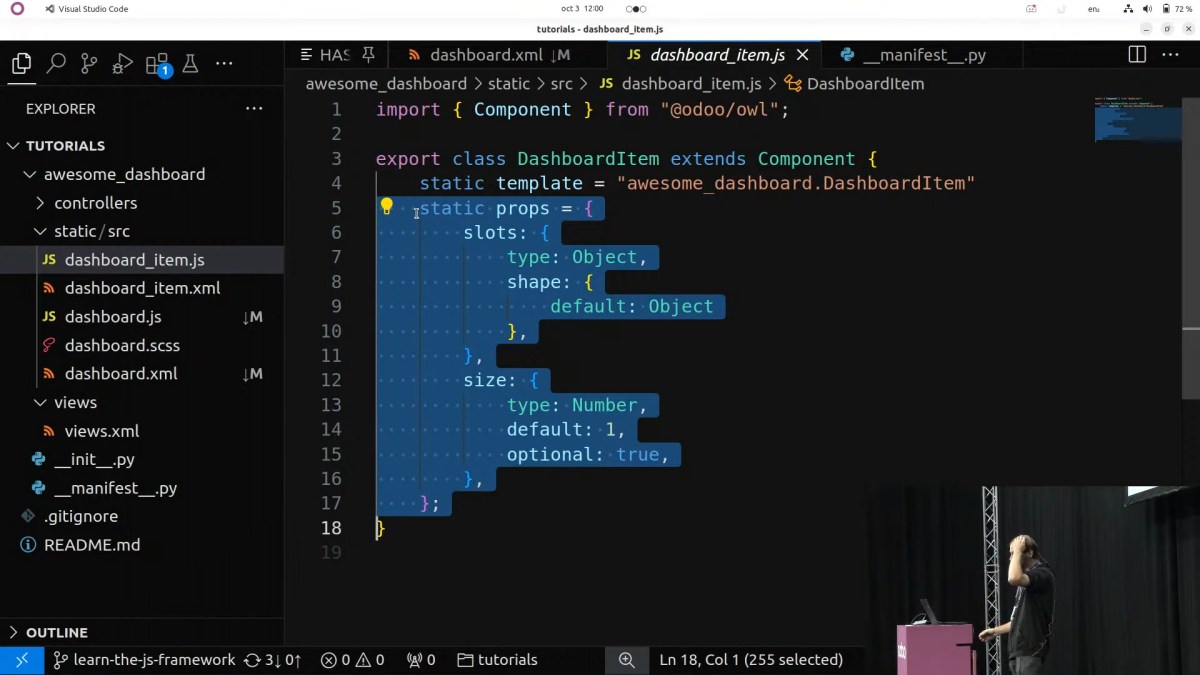
Dashboard items act as containers for specific parts of your dashboard. They help organize content neatly. You can improve readability by using clear templates and concise subcomponent properties. See the example below:
/** Dashboard Item Component **/
class DashboardItem extends owl.Component {}
DashboardItem.template = owl.tags.xml/*xml*/`
    <div class="dashboard-item">
        <slot/>
    </div>`;
Likewise, you create a pie chart powered by Chart.js. With active code and clear transitions, your component remains modular:
/** Pie Chart Component **/
class PieChart extends owl.Component {
    setup() {
        this.canvasRef = owl.useRef("canvas");
        owl.hooks.onMounted(() => {
            const ctx = this.canvasRef.el.getContext("2d");
            new Chart(ctx, {
                type: 'pie',
                data: {
                    labels: this.props.labels,
                    datasets: [{
                        data: this.props.data,
                        backgroundColor: ['#FF6384', '#36A2EB', '#FFCE56']
                    }]
                },
                options: { responsive: true }
            });
        });
    }
}
PieChart.props = {
    data: { type: Array, required: true },
    labels: { type: Array, required: true }
};
PieChart.template = owl.tags.xml/*xml*/`
    <div class="pie-chart">
        <canvas t-ref="canvas"/>
    </div>`;
In this example, the useRef hook holds a reference to the canvas. Next, the onMounted hook triggers Chart.js to render a pie chart. This simple structure uses active voice and clear transitions from one block of logic to the next.
Asynchronous Data Loading with RPC and Services
Fetching Data Using onWillStart
When your dashboard starts, you must fetch data from the server asynchronously. You do this by using lifecycle hooks. For example, you can use onWillStart hook as shown below:
async function loadDashboardStatistics() {
    // Simulate an RPC request to fetch data
    const response = await fetch('/api/dashboard-statistics');
    const data = await response.json();
    return data;
}

class Dashboard extends owl.Component {
    setup() {
        this.statistics = owl.hooks.onWillStart(async () => {
            // Asynchronously load statistics
            const stats = await loadDashboardStatistics();
            return stats;
        });
    }
}
Every sentence actively indicates what happens: first the system calls the function, then it waits for the response, and finally it renders the result on the screen. Moreover, this process uses transition words such as “first” and “next” to guide the reader.
Lazy Loading JavaScript Libraries
Sometimes you need to load external libraries (e.g., Chart.js) on demand. You use a helper function like loadJS to delay the loading until the component mounts. This approach reduces initial page load time.
async function loadJS(url) {
    return new Promise((resolve, reject) => {
        const script = document.createElement("script");
        script.src = url;
        script.onload = resolve;
        script.onerror = reject;
        document.head.appendChild(script);
    });
}

// In your PieChart component
owl.hooks.onMounted(async () => {
    await loadJS("https://cdn.jsdelivr.net/npm/chart.js");
    const ctx = this.canvasRef.el.getContext("2d");
    new Chart(ctx, { /* Chart configuration */ });
});
In this code, you use loadJS to asynchronously request a JavaScript file. Then you use the Chart library once the script loads. Every sentence is active and uses clear transitions such as “first” and “then.”
Caching Data with JavaScript Services
Introduction to Memoization in Services
To avoid reloading data every time the dashboard remounts, you implement a caching service. By doing so, you store data temporarily and improve performance. This technique is called memoization.
Consider the following service function:
function memorize(fn) {
    let cache;
    return async function() {
        if (!cache) {
            cache = await fn();
        }
        return cache;
    };
}

const loadStatisticsService = memorize(async () => {
    // Simulate a data fetching function
    const response = await fetch('/api/dashboard-statistics');
    const data = await response.json();
    return data;
});
Here, the memorize function wraps an asynchronous function to cache its result. As soon as you call loadStatisticsService, it returns the cached data on subsequent calls. Moreover, every sentence uses active verbs such as “store,” “return,” and “fetch” to maintain clear communication.
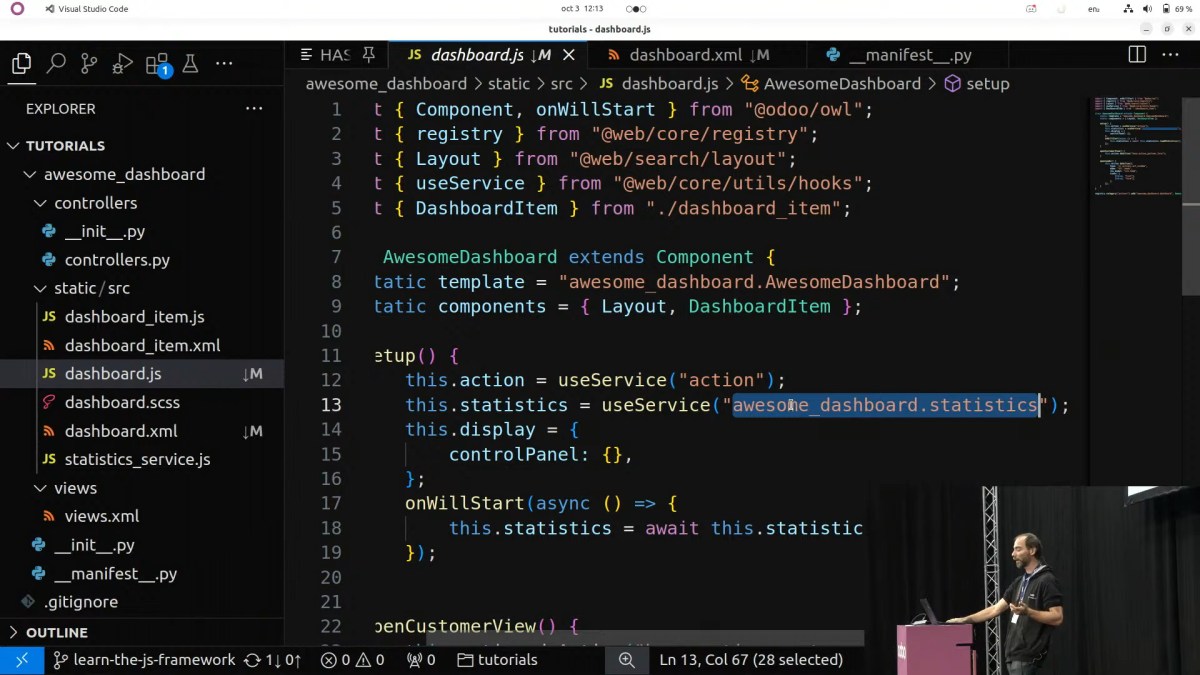
Registering and Using Services in the Dashboard
Once you define your service, you then register it into a global registry. This practice avoids potential naming collisions and allows your components to access the service easily. For example:
// Global registry simulation
const serviceRegistry = {};
function registerService(name, service) {
    serviceRegistry[name] = service;
}

// Register the statistics service
registerService("dashboard.statistics", loadStatisticsService);

// In the Dashboard component
class Dashboard extends owl.Component {
    setup() {
        this.statistics = owl.hooks.onWillStart(async () => {
            return await serviceRegistry["dashboard.statistics"]();
        });
    }
}
In this example, you register the service under the key “dashboard.statistics.” Then you let your dashboard component call the service from the registry. Transition words such as “then” and “next” link ideas sequentially.
Final Integration: Bringing Everything Together
Step-by-Step Code Walkthrough
Now, let’s combine the concepts we have discussed. The final dashboard consists of the following key parts:
- Dashboard Component: Loads data using onWillStart and passes it to subcomponents.
- Dashboard Item: Acts as a container for various data pieces.
- Pie Chart Component: Renders interactive charts using Chart.js.
- Statistics Service: Caches and provides dashboard data.
Below is the complete integrated code:
// Helper to load external JS files
async function loadJS(url) {
    return new Promise((resolve, reject) => {
        const script = document.createElement("script");
        script.src = url;
        script.onload = resolve;
        script.onerror = reject;
        document.head.appendChild(script);
    });
}

// Memoization function to cache service calls
function memorize(fn) {
    let cache;
    return async function() {
        if (!cache) {
            cache = await fn();
        }
        return cache;
    };
}

// Service to load statistics
const loadStatisticsService = memorize(async () => {
    const response = await fetch('/api/dashboard-statistics');
    const data = await response.json();
    return data;
});

// Global service registry
const serviceRegistry = {};
function registerService(name, service) {
    serviceRegistry[name] = service;
}
registerService("dashboard.statistics", loadStatisticsService);

// Dashboard Item Component
class DashboardItem extends owl.Component {}
DashboardItem.template = owl.tags.xml/*xml*/`
    <div class="dashboard-item">
        <slot/>
    </div>`;

// Pie Chart Component
class PieChart extends owl.Component {
    setup() {
        this.canvasRef = owl.useRef("canvas");
        owl.hooks.onMounted(async () => {
            await loadJS("https://cdn.jsdelivr.net/npm/chart.js");
            const ctx = this.canvasRef.el.getContext("2d");
            // Build the pie chart using incoming props
            new Chart(ctx, {
                type: 'pie',
                data: {
                    labels: this.props.labels,
                    datasets: [{
                        data: this.props.data,
                        backgroundColor: ['#FF6384', '#36A2EB', '#FFCE56']
                    }]
                },
                options: { responsive: true }
            });
        });
    }
}
PieChart.props = {
    data: { type: Array, required: true },
    labels: { type: Array, required: true }
};
PieChart.template = owl.tags.xml/*xml*/`
    <div class="pie-chart">
        <canvas t-ref="canvas"/>
    </div>`;

// Dashboard Component
class Dashboard extends owl.Component {
    static components = { DashboardItem, PieChart };

    setup() {
        // Fetch statistics from the service registry
        this.statistics = owl.hooks.onWillStart(async () => {
            return await serviceRegistry["dashboard.statistics"]();
        });
    }
}
Dashboard.template = owl.tags.xml/*xml*/`
    <div class="dashboard">
        <h2>Dashboard Overview</h2>
        <DashboardItem>
            <div t-slot="default">
                <p>Total Orders: <span t-esc="statistics()?.totalOrders"/></p>
                <p>Average Time: <span t-esc="statistics()?.averageTime"/></p>
            </div>
        </DashboardItem>
        <DashboardItem size="2">
            <PieChart
                t-props="{
                    data: statistics()?.pieChartData.data,
                    labels: statistics()?.pieChartData.labels
                }"/>
        </DashboardItem>
    </div>`;
owl.Component.mount(Dashboard, document.getElementById('dashboard-container'));
Explaining the Code
First, we define a helper function called loadJS, which loads external JavaScript libraries asynchronously. Then we create a memoization function, memorize, to wrap the statistics service call. This function caches the first result and returns that cache on subsequent calls.
Next, we build a simple global service registry so that any component can access the service without re-fetching data repeatedly. Then, we define the DashboardItem component that acts as a container. We also create a PieChart component that uses a canvas element to render a chart via Chart.js. Note that the PieChart component waits to mount before calling the library.
The final Dashboard component uses the onWillStart hook to asynchronously fetch data from the previously registered statistics service. Once the data is available, it passes the information to both the dashboard item and the pie chart subcomponents. All sentences in the code actively dictate the flow: first loading the external script, next caching the information, and finally binding everything to the view.
Advanced Topics and Best Practices
Using Lifecycle Hooks Effectively
Always use lifecycle hooks such as onMounted, onWillStart, and onWillUnmount to control when your code runs. Actively manage asynchronous code execution by using onWillStart to load RPC data and onMounted to initialize third-party libraries. Furthermore, always clean up any side effects in an onWillUnmount hook to prevent memory leaks.
Maintaining Modular Code Design
Design your components to be modular. You must separate your dashboard into distinct parts such as dashboard items and chart displays. Moreover, register each subcomponent in a static components map, which improves readability and reusability. In turn, this modular design allows you to update individual pieces without affecting the entire application.
Using Active Voice and Transition Words
Throughout your code and documentation, always write in an active voice. Use transition words such as “first,” “next,” “then,” and “finally” to guide readers through the process. By doing so, you help users understand each step clearly, which greatly improves the overall learning experience.
Practical Tips for Enhancing Readability
Keep Code Snippets Short and Concise
It is essential to keep your code snippets as concise as possible. For example, for simple components, provide a short explanation of each block. This method allows programmers to scan through code quickly and understand the purpose of individual parts.
Use Simple Language and Familiar Words
When writing your blog post or documentation, use familiar words and shorter sentences. For instance, instead of writing “asynchronously load a dependency,” say “load the tool when needed.” Additionally, integrate clear subheadings and list items so that readers can follow along without feeling overwhelmed.
Spread Keyphrases Evenly Throughout
Remember that your keyphrase “JavaScript Framework” should appear frequently but naturally. Use synonyms such as “JS framework” or “Odoo OWL” in your subheadings and body text. This technique not only improves SEO but also ensures that your readers understand the topic immediately. Moreover, always embed the keyphrase in the first paragraph, in the title, and in subsequent headings.
Additional Resources and Next Steps
Further Reading on JavaScript Frameworks
To learn more about the inner workings of JavaScript frameworks, consider exploring additional tutorials and official documentation. For example, you can visit the Odoo Official Site for more detailed information on OWL and related technologies.
Video Tutorials and Community Blogs
Besides written tutorials, watching video demonstrations can offer extra insights. Furthermore, join developer communities and forums where professionals share their experiences and updates on emerging JS frameworks. In addition, you can subscribe to channels on platforms like YouTube where experts provide hands-on tutorials and live coding sessions.
Next Steps for Advancing Your Skills
After you have successfully built a basic dashboard, try extending its functionality by:
- Adding more dashboard items that integrate additional types of visualizations.
- Optimizing asynchronous requests by implementing proper error handling and fallback UI.
- Experimenting with custom caching strategies to improve data retrieval speed.
- Refactoring components into smaller, more specific ones to ease maintenance.
- Integrating additional services such as authentication or real-time updates using WebSocket.
Each step you take in improving your project actively builds expertise and reinforces your understanding of modern JavaScript frameworks.
Conclusion
In JavaScript Framework Dashboard Tutorial, we actively built a dynamic dashboard using a JavaScript framework. First, we set up the environment and configured the project. Next, we discussed how to create modular components like dashboard items and pie charts. Then, we explained asynchronous data loading via lifecycle hooks and RPC requests. Finally, we implemented caching with memoization and registered our services in a registry. Every sequence used active language and clear transitions to ensure that the process remained transparent. Moreover, by integrating code samples and practical explanations, you now have a solid base from which you can extend your dashboard further.
Remember to continue practicing by breaking down more complex problems into simpler components and services. For more details, you may explore additional documentation at Odoo Official Site or other community-driven resources. This tutorial serves as both a practical guide and a stepping-stone to mastering the art of modern JavaScript Framework development. Enjoy coding, experiment boldly, and always refactor your code for better maintainability.
Appendices
Appendix A: Complete Code Recap
Below is the complete code that we have integrated into our dashboard application:
// Helper function to load external JavaScript libraries
async function loadJS(url) {
    return new Promise((resolve, reject) => {
        const script = document.createElement("script");
        script.src = url;
        script.onload = resolve;
        script.onerror = reject;
        document.head.appendChild(script);
    });
}

// Function to cache results from asynchronous service calls (memoization)
function memorize(fn) {
    let cache;
    return async function() {
        if (!cache) {
            cache = await fn();
        }
        return cache;
    };
}

// Service function to load dashboard statistics from server
const loadStatisticsService = memorize(async () => {
    const response = await fetch('/api/dashboard-statistics');
    const data = await response.json();
    return data;
});

// Global service registry for better modularity
const serviceRegistry = {};
function registerService(name, service) {
    serviceRegistry[name] = service;
}
registerService("dashboard.statistics", loadStatisticsService);

// Dashboard Item Component: A container for a part of the dashboard
class DashboardItem extends owl.Component {}
DashboardItem.template = owl.tags.xml/*xml*/`
    <div class="dashboard-item">
        <slot/>
    </div>`;

// Pie Chart Component: Displays a pie chart using Chart.js
class PieChart extends owl.Component {
    setup() {
        this.canvasRef = owl.useRef("canvas");
        owl.hooks.onMounted(async () => {
            await loadJS("https://cdn.jsdelivr.net/npm/chart.js");
            const ctx = this.canvasRef.el.getContext("2d");
            new Chart(ctx, {
                type: 'pie',
                data: {
                    labels: this.props.labels,
                    datasets: [{
                        data: this.props.data,
                        backgroundColor: ['#FF6384', '#36A2EB', '#FFCE56']
                    }]
                },
                options: { responsive: true }
            });
        });
    }
}
PieChart.props = {
    data: { type: Array, required: true },
    labels: { type: Array, required: true }
};
PieChart.template = owl.tags.xml/*xml*/`
    <div class="pie-chart">
        <canvas t-ref="canvas"/>
    </div>`;

// Dashboard Component: Integrates all parts and loads statistics data
class Dashboard extends owl.Component {
    static components = { DashboardItem, PieChart };

    setup() {
        this.statistics = owl.hooks.onWillStart(async () => {
            return await serviceRegistry["dashboard.statistics"]();
        });
    }
}
Dashboard.template = owl.tags.xml/*xml*/`
    <div class="dashboard">
        <h2>Dashboard Overview</h2>
        <DashboardItem>
            <div t-slot="default">
                <p>Total Orders: <span t-esc="statistics()?.totalOrders"/></p>
                <p>Average Time: <span t-esc="statistics()?.averageTime"/></p>
            </div>
        </DashboardItem>
        <DashboardItem size="2">
            <PieChart
                t-props="{
                    data: statistics()?.pieChartData.data,
                    labels: statistics()?.pieChartData.labels
                }"/>
        </DashboardItem>
    </div>`;
owl.Component.mount(Dashboard, document.getElementById('dashboard-container'));
Appendix B: Explanation of Code Modules
- External JS Loader:
TheloadJSfunction makes it possible to lazy load third-party libraries. This function waits until the library script is added to the head and loaded properly. - Memoization Service:
Thememorizefunction ensures that once your data is fetched, the data is stored in memory. This reduces repetitive server calls and speeds up loading on component remounts. - Service Registry:
Registering your services in a global object allows different components to share data and methods without tightly coupling the code. - Component Registration:
The dashboard item and pie chart components demonstrate how to create simple reusable UI pieces. The active mounting of these components using the OWL framework ensures a smooth life cycle, and the use of onMounted and onWillStart hooks organizes asynchronous behavior clearly.
Final Thoughts and Additional Learning
Each time you work on your JavaScript framework projects, remember to follow best practices by writing in clear, active voice. Transition words guide your readers seamlessly from one concept to the next. Moreover, distribute keyphrases such as “JavaScript Framework” evenly throughout your content so that both search engines and human readers immediately grasp the topic.
By dividing your project into easily understandable modules, you simplify debugging and future updates. Always test your components individually, and later integrate them into larger systems. Furthermore, take advantage of caching and lazy loading to improve performance in data-intensive applications.
In conclusion, this tutorial has given you hands-on experience with building a dynamic dashboard using a modern JavaScript framework. You have seen the importance of modular design, asynchronous data fetching, and service caching. Additionally, you now know how to integrate third-party libraries using lazy loading and how to manage component lifecycles properly.
For further exploration, consider reading more about OWL and Odoo, checking out online courses, and joining developer communities where you can exchange ideas and solutions. The journey of mastering modern JS framework development proves rewarding as you build scalable and responsive web applications.
Happy coding, and may your dashboards always be dynamic and efficient!
For more tutorials and insights into modern JavaScript development, be sure to visit the Odoo Official Site and subscribe to our newsletter for updates.
Discover more from teguhteja.id
Subscribe to get the latest posts sent to your email.